By Jahed Ahmed, Founder, rmvbg 5 min read
Quick answer
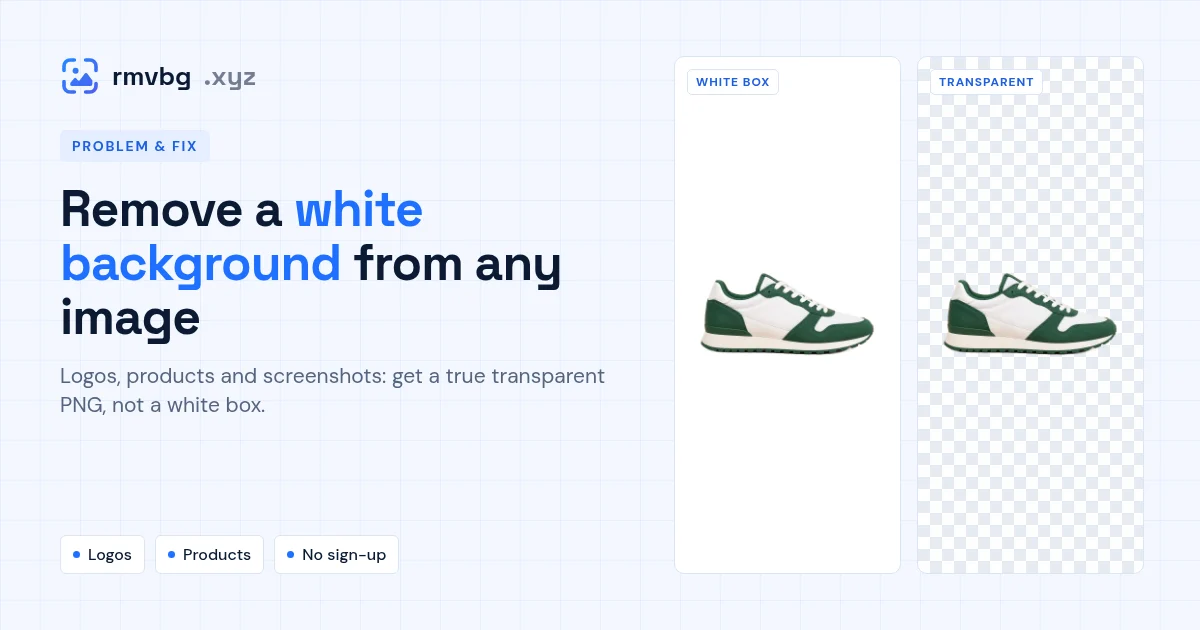
To remove a white background, open the image in rmvbg — it detects the subject and removes the white automatically — then download a PNG, because only formats like PNG or WebP keep transparency (JPG always fills it with a colour). For logos with thin lines or text, use remove background from logo so the edges stay crisp. Check the result on a dark slide or page: a true transparent PNG shows no white box.
Why a white background keeps coming back
- The file is a JPG. JPG has no transparency, so the see-through area is saved as white.
- The picture is a screenshot of a transparent image, which captures the checkerboard or white behind it.
- Only the outer white was removed, leaving white inside letters like O, A or R.
Pick the right free tool for the image
| Your image | Best free option |
|---|---|
| Logo or text on white | [Remove background from logo](/remove-background-from-logo) |
| Product photo for a shop | [Product photo background remover](/product-photo-background-remover), then white or a colour |
| Signature on paper | [Signature background remover](/signature-background-remover) |
| Lots of photos | [Bulk background remover](/bulk-background-remover) with ZIP download |
How to check it worked
Put the PNG on a dark background — a dark slide, a black page or a dark-mode chat. If you can still see a white rectangle or white specks around the edges, run it again from the original, higher-resolution file rather than a screenshot.