By Jahed Ahmed, Founder, rmvbg 4 min read
Quick answer
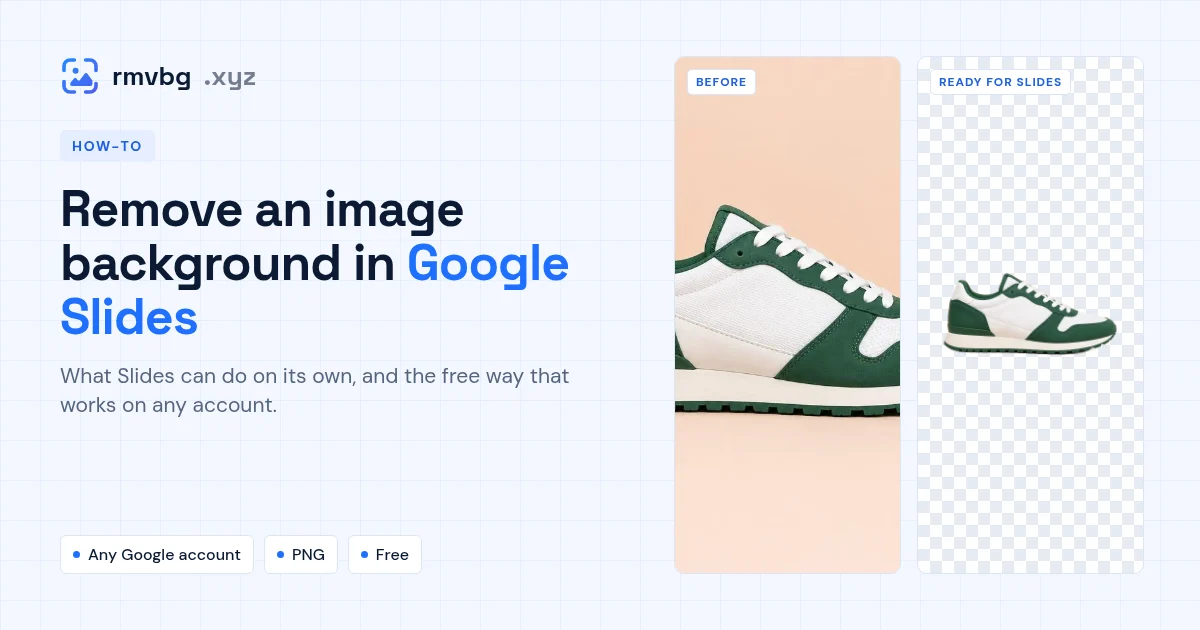
Google Slides can remove a background itself only on eligible plans: select the image and choose Edit image → Remove background. At the time of writing Google lists Workspace Business Standard and Plus, Enterprise Standard and Plus, and Google AI Pro or Ultra. On a free Gmail account, remove the background with rmvbg first, download the transparent PNG and choose Insert → Image → Upload from computer in Slides.
If your account has the Remove background button
- Click the picture on your slide.
- Choose Edit image → Remove background (or Format → Image → Edit image).
- Check the edges, then keep the result.
On a free Google account
- Open rmvbg.xyz and drop in the picture.
- Download it as a transparent PNG. Want a coloured box behind it instead? Use change background colour.
- In Slides choose Insert → Image → Upload from computer.