By Jahed Ahmed, Founder, rmvbg 4 min read
Quick answer
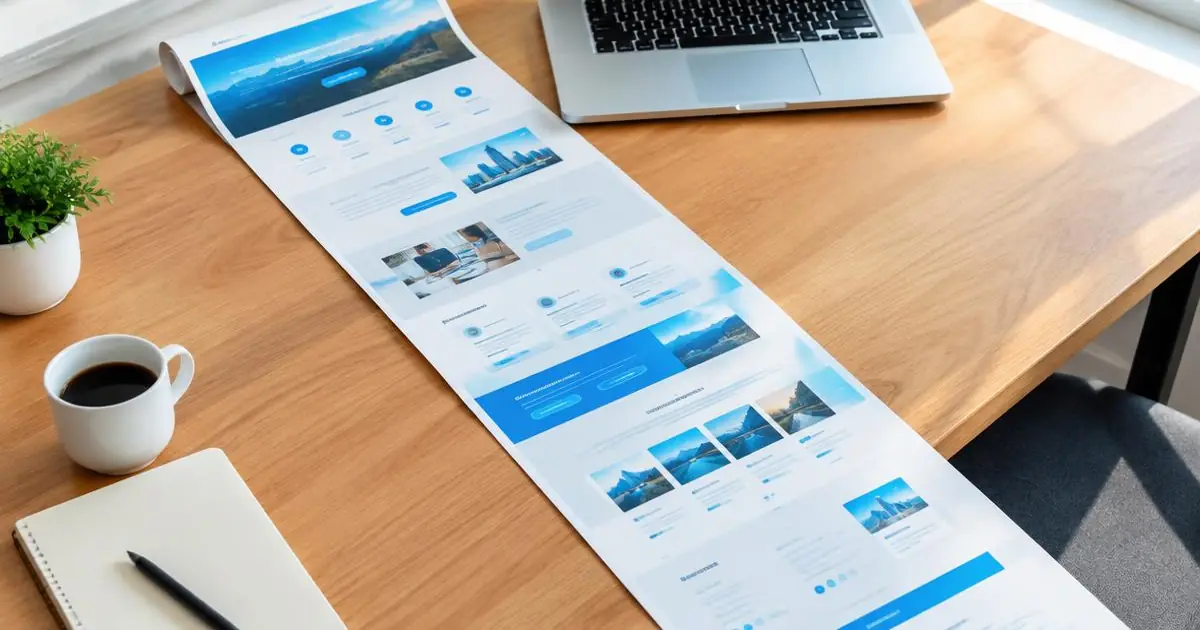
The fastest way to take a full-page screenshot in Chrome is the free rmvbg extension: click it and choose Full page. Without an extension, open DevTools (Ctrl+Shift+I), press Ctrl+Shift+P, type “screenshot” and choose “Capture full size screenshot”.
1. Chrome DevTools (built in)
- Press Ctrl+Shift+I (Cmd+Option+I on Mac) to open DevTools.
- Press Ctrl+Shift+P (Cmd+Shift+P) to open the command menu.
- Type “screenshot” and choose “Capture full size screenshot”.
It works without installing anything, but there is no editor, and pages with sticky headers or inner scroll panels can come out wrong.
2. The rmvbg extension (one click)
- Install the rmvbg Chrome extension.
- Click the rmvbg icon and choose Full page (or Visible area / Select area).
- The screenshot opens in the editor — add arrows, boxes, text, numbered steps or blur.
- Download PNG, copy it, or save it as PDF.
3. Print to PDF
Ctrl+P → Save as PDF captures the text of a page but often changes the layout. It is useful for articles, not for showing how a page looks.
Make it look polished
Use screenshot mockups to add a background, padding, a browser bar or a laptop frame before posting.