By Jahed Ahmed, Founder, rmvbg 5 min read
Quick answer
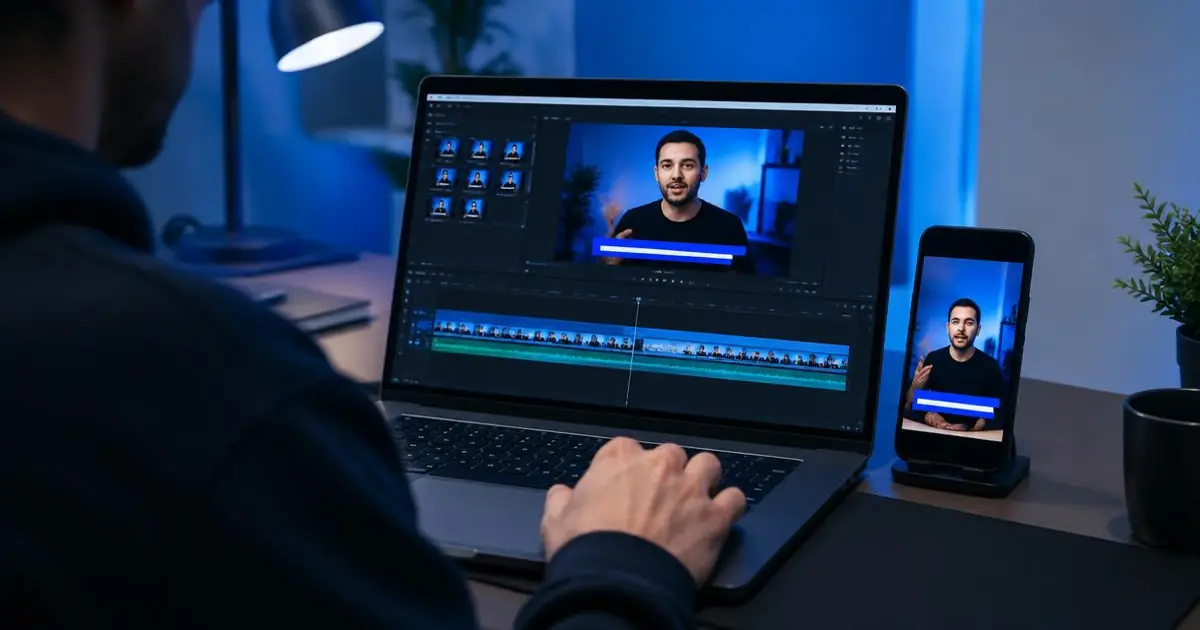
Open your recording in rmvbg Studio, press “Auto edit now” (or open Subtitles), pick a style and check the lines, then choose a shape — 16:9 for YouTube, 9:16 for Shorts and Reels, 1:1 or 4:5 for feeds — and export. Subtitles are timed to your voice and burned into the video.
Why subtitles matter
On phones, many people watch with the sound off. Subtitles keep them watching, make tutorials easier to follow and help viewers who are deaf or hard of hearing.
Steps in rmvbg Studio
- Record with the rmvbg screen recorder or upload a video on the Recordings page.
- Open the recording and press “Auto edit now” — it adds subtitles, zooms, titles and cuts long pauses.
- Open Subtitles to fix any word and choose Studio, Bold or Clean style.
- Pick the frame shape in Video resizer: 16:9, 9:16, 1:1 or 4:5.
- Export the MP4, or share a link with comments.
Make chapters too
Press M while recording to mark moments, then paste the YouTube chapters into your description.