By Jahed Ahmed, Founder, rmvbg 3 min read
Quick answer
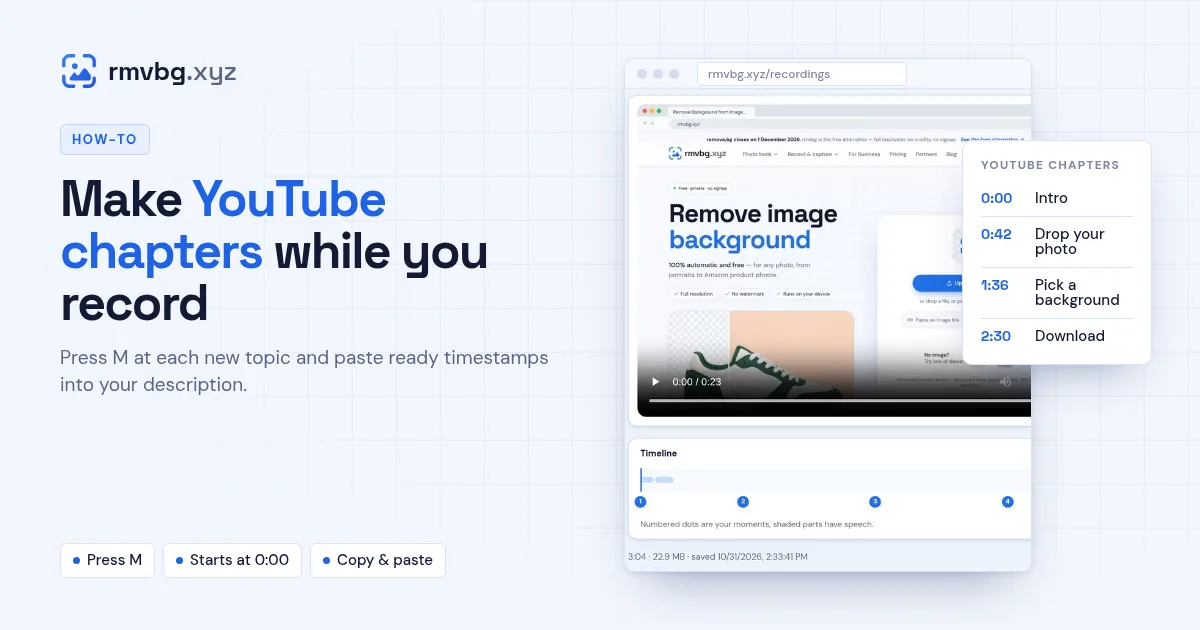
Record with rmvbg Recorder Studio and press M each time you start a new topic. Open the recording in rmvbg Studio, give each moment a name, then press YouTube chapters to copy the list — it starts at 0:00 as YouTube requires — and paste it into your video description. Chapters also show on your rmvbg share page.
Steps
- Start a recording from the rmvbg extension.
- Press M whenever you move to a new topic.
- Open the recording in Studio and go to Moments.
- Name each moment, then press YouTube chapters to copy the list.
- Paste the list into your YouTube description.
YouTube's chapter rules
- The first timestamp must be 0:00.
- You need at least three timestamps.
- Each chapter should be at least 10 seconds long.
rmvbg starts the list at 0:00 for you (adding “Intro” if needed). Mark at least three moments, at least 10 seconds apart, and check YouTube Help for the latest rules.