By Jahed Ahmed, Founder, rmvbg 4 min read
Quick answer
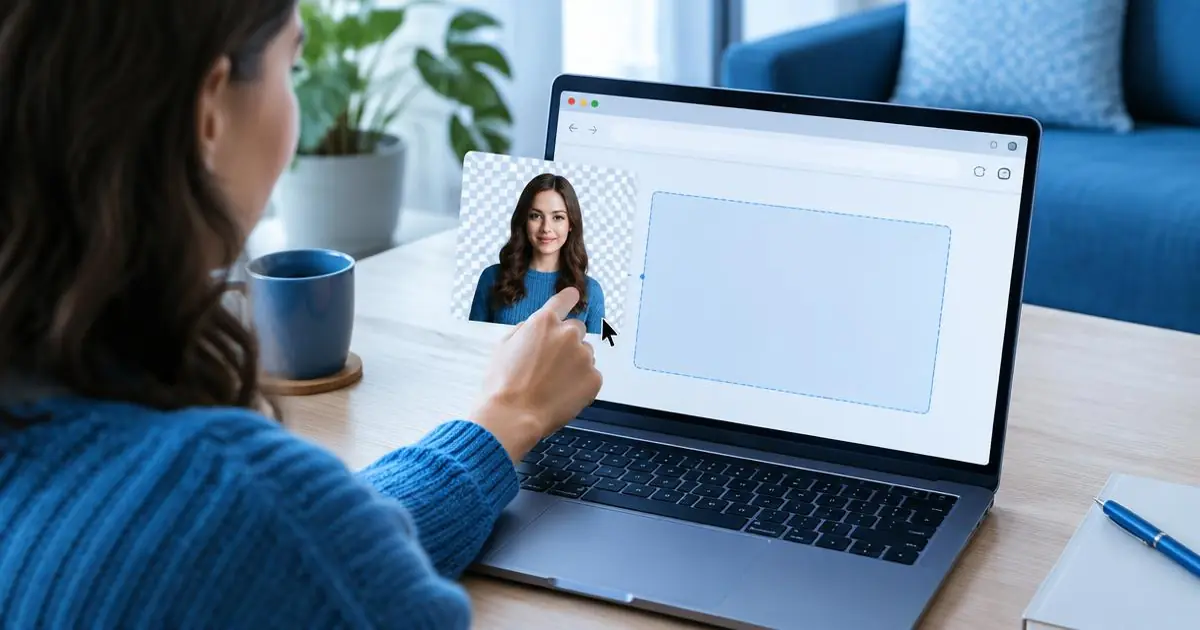
To screen record on Chrome with your webcam, install the rmvbg extension, click Record, choose a tab, window or entire screen, turn on your camera and microphone, and press Start. Drag the camera bubble where you want it. When you stop, download the video or open it in rmvbg Studio to edit and share. Recording is part of rmvbg Pro.
Four steps
- Add the rmvbg extension to Chrome (or Edge, Brave, Arc) and pin it.
- Click Record and pick what to share: a tab, a window or your entire screen.
- Turn on your camera and mic, choose the camera shape and drag it to any corner.
- Press Start. Stop when you're done — the video opens ready to download or save.
Pick the right shape
| Where it's going | Shape |
|---|---|
| YouTube, Loom-style updates, tutorials | 16:9 |
| Shorts, Reels, TikTok | 9:16 |
| LinkedIn and Instagram feed | Square or 4:5 |
Sound tips
- Use a headset or a USB mic if you have one; laptop mics pick up room echo.
- Turn on mic clean-up in the recorder to reduce background hum.
- Choose “Tab” when you want the page's own sound in the recording.
After recording, Auto edit in the video editor cuts pauses, adds subtitles and zooms. Press M while recording to mark moments for YouTube chapters.